
To create a new header:
- Access Wraith > Global Sections
- Hit Add new.
- Select “Header” in the Type option.
- Publish the page
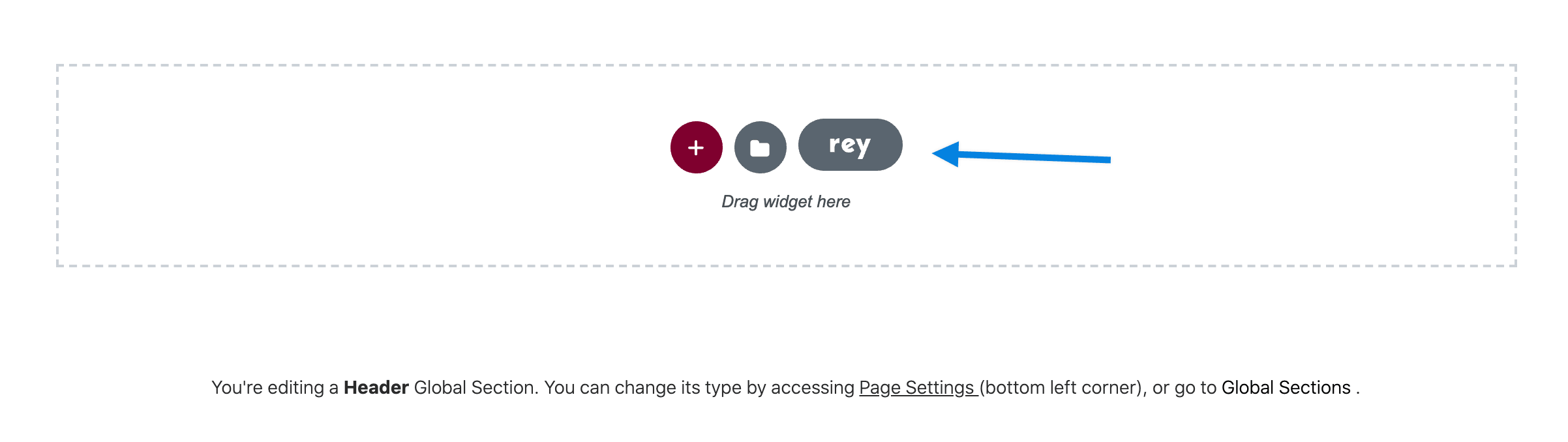
- Hit Edit with Elementor
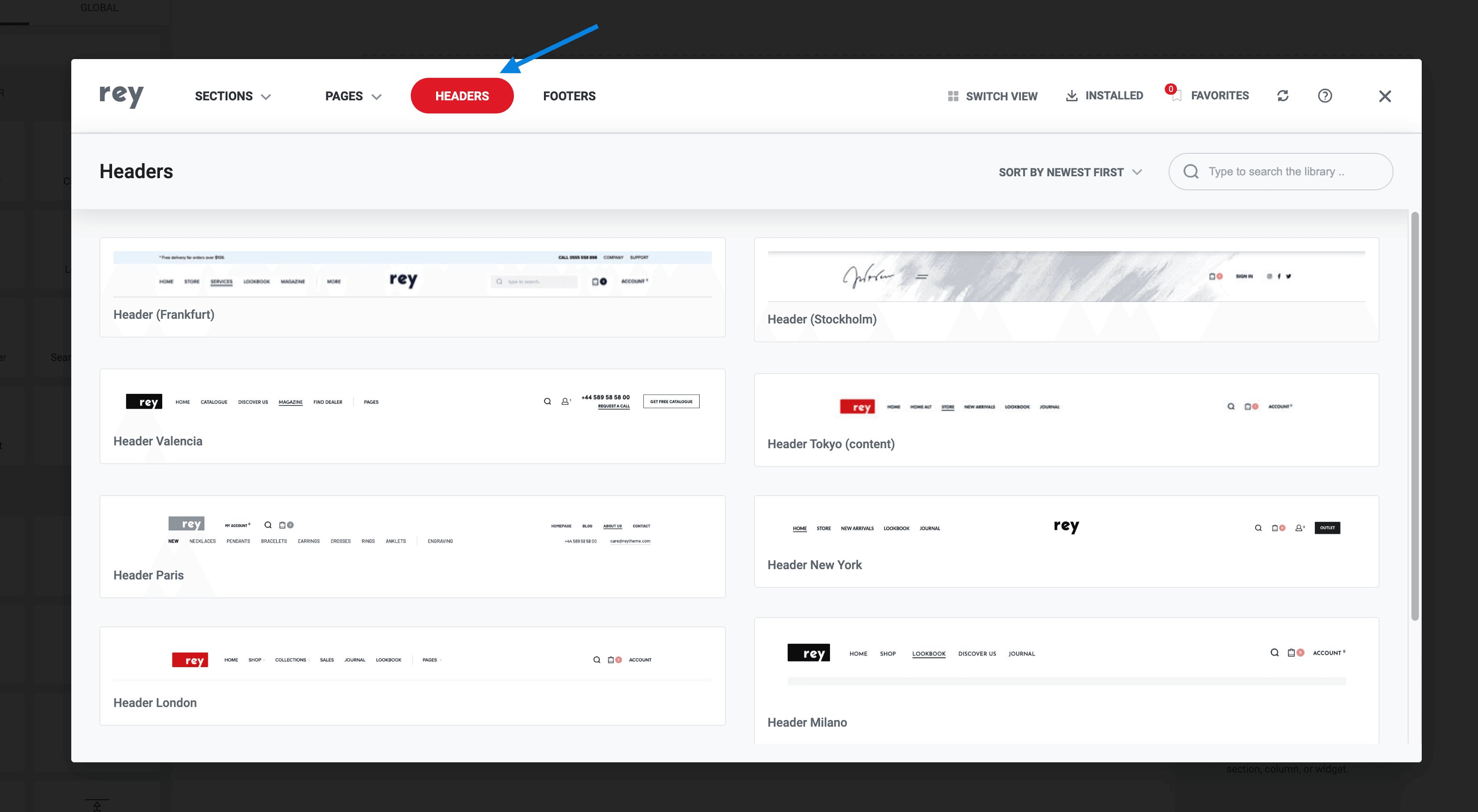
- Add elements from the Header elements group

Globally assign the newly created Header global section? #
Simply access Customizer > Header > General and you should be able to pick the header you just created.

How to change the header global section per page? #
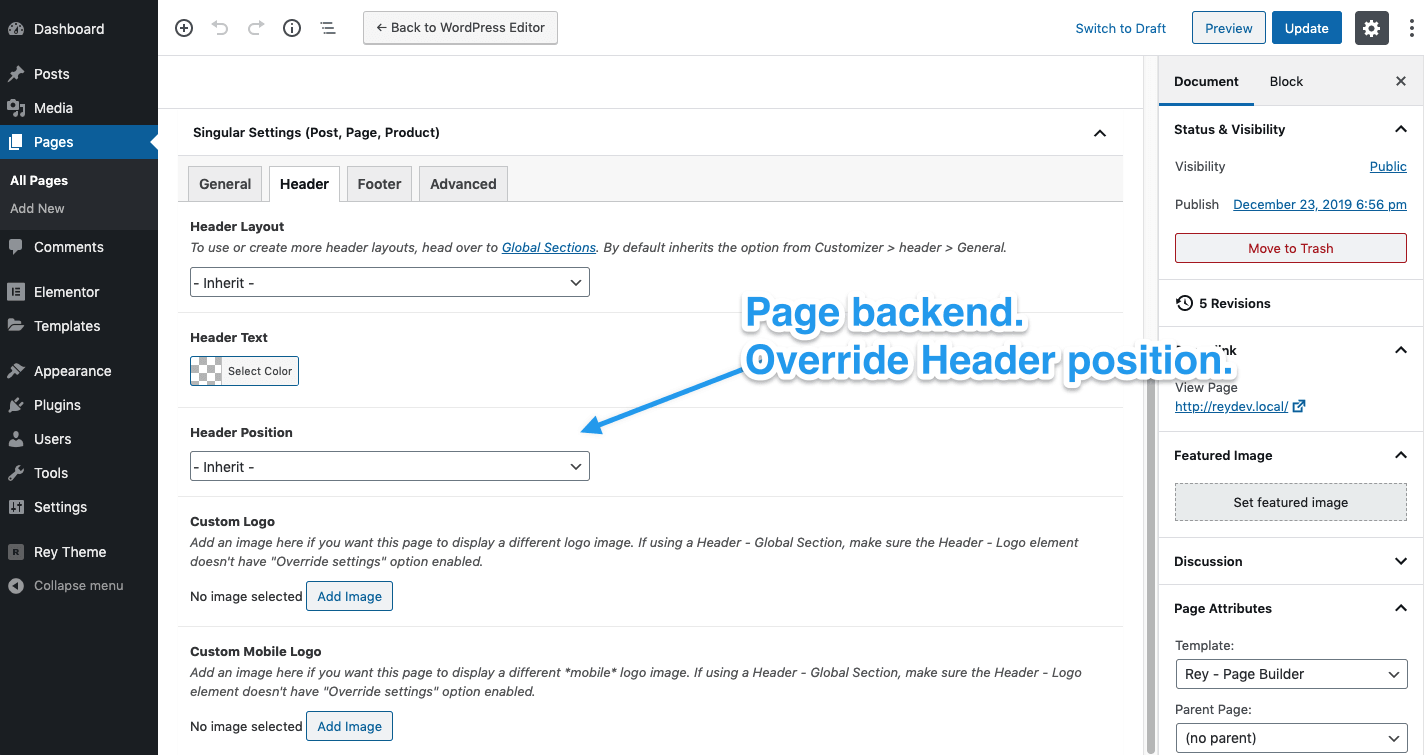
Edit the page you want to change the header on, and look for the Header settings, where you can pick the header itself, text color fallback and position.

How does header positioning work? #
Wraith supports the following positions:
- Relative (default)
- Absolute. It will be positioned over the content.
- Fixed. It will be positioned over the content and sticked to the site top edge, on scroll.
Relative #
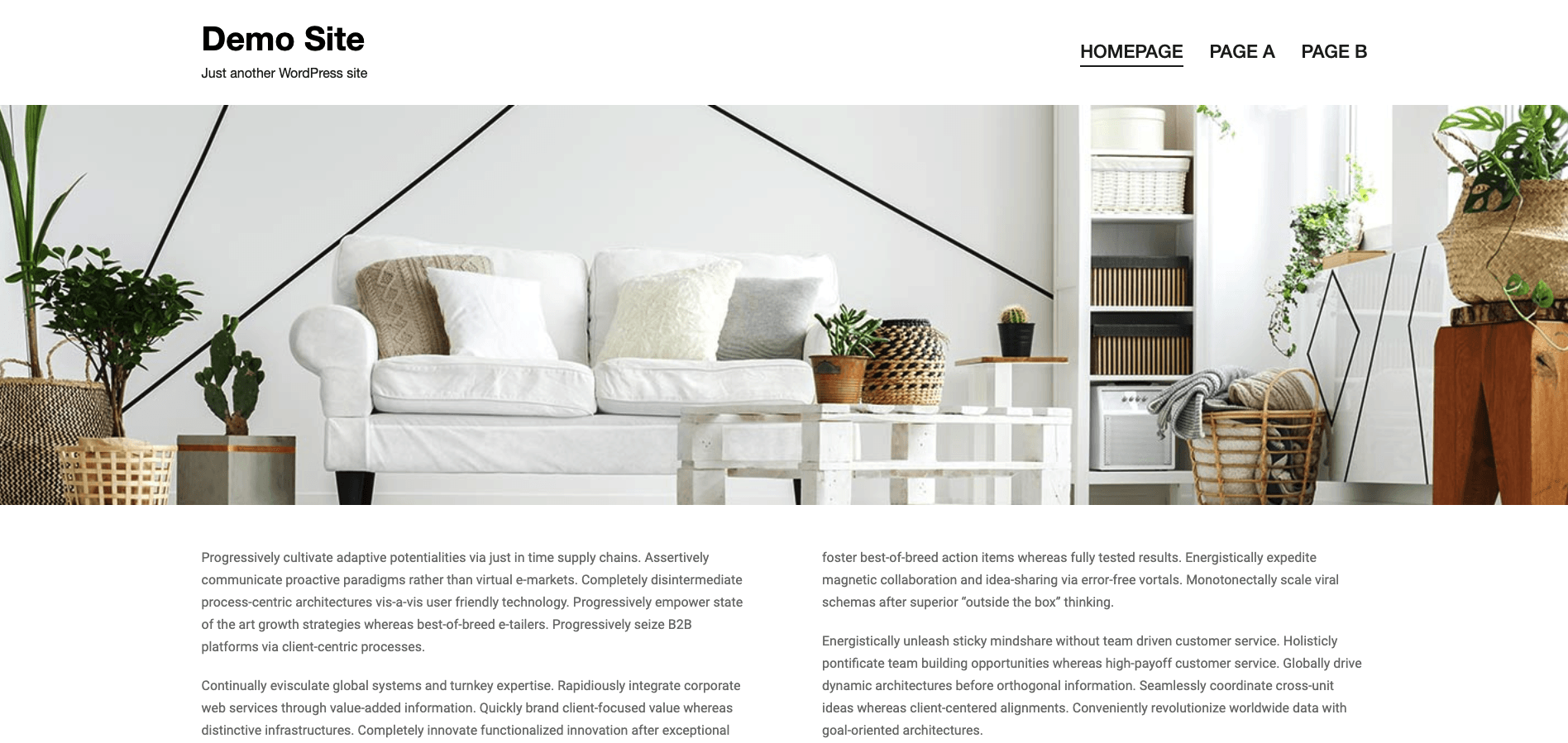
This will simply render the header pushing the “upcoming” content to bottom.
Absolute #
This option will make the header to overlap the “upcoming” content.

Fixed #
This option will make the header to overlap the “upcoming” content, but also remain to the top while scrolling the page.
Overlapping content (option) #
Both Absolute and Fixed header positions have an option to disable overlapping. While it doesn’t make too much sense to disable them (you’d better use Relative), there are cases when it’s useful to disable overlapping, for instance:
- When you want to keep Fixed to top, but don’t want the content to stay over the upcoming content;
- When you want to disable overlapping on tablets or mobiles;
- Probably other cases too.
Overriding position per page #
You might have noticed that in some of Rey’s demos, homepage (or shop page) header is different than the rest of the site eg:

As seen in the screenshots below:
- The homepage has Absolute position (over the slider), has white text and white custom logo;
- The Shop page Absolute position, while the text and logo are inherited from global settings in Customizer.
- The pages header simply display global settings from Customizers.
So in this scenario, the homepage and shop pages are exceptions from the rule. So it’s recommended to only change the position on the specific page’s options, and depending on the case, the Header text color, Logo etc.
How to create a sticky header? #
Please follow this article https://support.reytheme.com/kb/create-a-custom-sticky-header/ .
Tips & Tricks for creating headers #
When creating headers, try as much as you can to use elements inline, in a single column, aligning them either left or right horizontally, and centered vertically. They will flow more naturally vs. adding columns for each element.
For example here’s a quick screencast how to position elements inline to fit well in a single column https://d.pr/v/9WThDN .
Note: Longer format YouTube tutorials are coming soon.
Why is clicking disabled on header components in Edit mode? #
For example clicking on Menu items or Search box.
Because it’s not stable and conflicts with Elementor’s actions. Hopefully i’ll find solutions in the future to enable clicking.