
Welcome to Wraith. This quickstart guide will walk you through installing your Wraith build. This method ensures your site is imported exactly as it was designed — fast, secure, and with everything ready to go.
✅ Prerequisites #
Before you begin, make sure you have the following:
1. A WordPress Installation #
You need a clean WordPress install to begin. You can set this up using one of the following:
- Rocket.net (Recommended) (Similar to Shopify, they offer a $1 deal for the first month)
- Any other host of your choice (e.g., SiteGround, Cloudways, WPX.net, etc.)
- Or use LocalWP if you’re working in a local development environment (LocalWP WILL be slower than a hosted website)
2. Your Wraith Theme Files #
After purchasing, you should have received a ZIP file to download. This contains your theme files that will be used to upload to your new WordPress website.
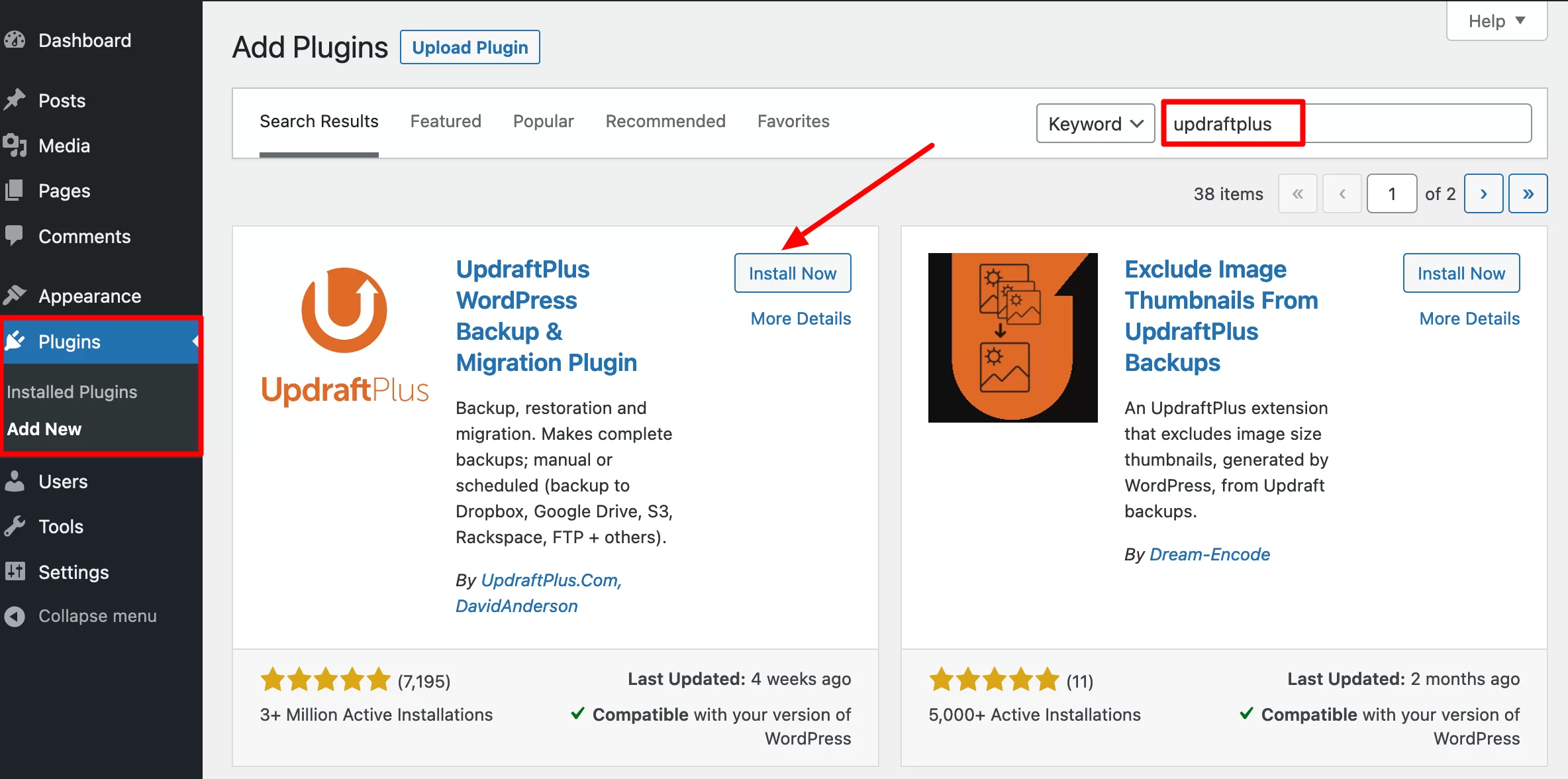
📥 Step 1: Install UpdraftPlus #
- Log in to your WordPress admin dashboard.
- Go to
Plugins > Add New. - Search for UpdraftPlus.
- Click Install Now, then Activate.
🔄 Step 2: Open UpdraftPlus and Restore Wraith #
- In the WP admin sidebar, go to
Settings > UpdraftPlus. - Click on the “Upload backup files” button.
- Drag and drop your Wraith backup files into the upload area.
- Your .zip file once extracted should contain multiple files inside (e.g., database, plugins, themes, uploads), upload them all.

- Once uploaded, the backup should appear in the list.
- Click Restore next to the backup.
- In the dialog, select all options (plugins, themes, uploads, others, database).
- Click Next and then Restore to begin.
Make sure ALL options are checked here!

- Wait until the process completes. Once done, your Wraith build is fully restored! Click Return to UpdraftPlus configuration.

🧹 Step 3: Post-Restoration Cleanup #
After the restoration, you may want to:
- Update permalinks: Go to
Settings > Permalinksand click Save Changes (no need to edit anything). - Check all pages and menus to ensure everything looks correct.
- Set your homepage via
Settings > Readingif not already set. - Remove any placeholder content and replace it with your brand content.
✅ [Insert image here: Homepage set under Reading Settings]
🔐 Optional: Create New Admin User (for security) #
If the Wraith backup includes a default admin user, you can:
- Go to
Users > Add New - Create your own secure admin account.
- Log in with your new account.
- Delete the old admin account (optional but recommended).
💬 Need Help? #
If anything doesn’t look right, or you’d prefer we handle the setup for you, you can add Professional Installation at checkout or contact our support team anytime.
🎉 You’re Live #
You’ve now successfully restored your Wraith store! You can start customizing your brand, uploading products, and going live in just a few hours.